Q node bench
A page where you name a Q node on a building's wired M-Bus, see the meters it collects, and add or remove one — without going to the building.
It needs an account. An administrator invites you, or you ask for one.
Use it when a flat's meter is not being read and you want to know whether the node collects it at all, or when a meter has been changed and the node still names the old one.
This is the only page here that changes something in a building. Everything else reads. A meter removed from a node stops being read from that node, and putting it back is another change that takes its own hour. So every change is kept, with your name against it, and a removal is asked about before it is sent.
One person at a time on one converter. Two masters on one bus corrupt each other's answers, and the bench refuses a second session on the same address, saying who is using it. It cannot see whether another system is reading the building, so do not open a session on a building that is being read.
Words used on this page
- A node is a Q node 5.5: the box in a building that collects meters over radio and answers for them on the wired M-Bus. A building may have several, usually one per stairwell.
- A node's device list is the set of meters it collects. This page reads that list and changes it.
- A place is one of the twelve positions a network has for its nodes. Each node holds one, and the other nodes know it by that number.
- A converter is a level converter: the box on a building's network that turns the network into the M-Bus's two wires. The node is reached through it.
- A preset is one building, kept by an administrator: the converter, the nodes on it with their names, the meters expected on each, and the network login.
- The network login is the username, the password and the level of the building's own Q network — what a technician types into the Q app. It is not your account here.
Signing in
An administrator invites you by email and sends you a link. Open it, choose a name and a password of at least ten characters, and the account exists.
You may also ask for an account. Press Ask for an account, under Sign in. Give your name, your email and why you need it, and press Send the request. Every administrator is sent an email about it. If one of them approves it, you are sent the link above by email. If nobody approves it, you are sent nothing.
There are two roles, and neither of them is narrower than the other about nodes: anybody with an account here may change a device list. That is why an administrator reads a request for an account before giving one.
| Role | What it can do |
|---|---|
| Administrator | Everything, and the Presets and Users tabs. Reads the whole journal. |
| User | Reads any node of any preset, changes a device list, and reads their own journal rows. |
Requests for an account, at the top of Users, are the people who asked for one. Every administrator is sent an email for each. Choose a role in the row (User is offered first, and it may already change a device list) and press Approve: the bench writes an ordinary invitation and sends its link to the person by email. Where the bench cannot send email, it shows the link to copy instead. Reject asks first; the person is sent nothing, because the email was typed by whoever asked and may be somebody else's. One address can send three requests in an hour, at most twenty wait at once, and a request is deleted after 30 days.
To change your own password, press Change my password, beside your name at the top. It asks for the one you have now.
On a phone your name at the top is a button. Press it for Change my password, Help and Sign out.
If you cannot sign in at all, an administrator presses Password link on your row under Users and sends you the link it writes. You choose your own password; they never learn it. The link works once, and for seven days.
Choosing a node
The Node tab is the page. It is four steps, down the screen.
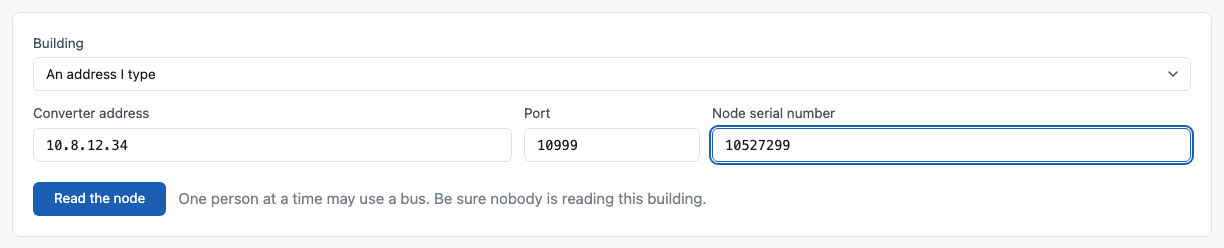
Choose the building and then the node on it. Both come from the presets an administrator keeps, so a node is named "stairwell A" rather than by eight digits.
Where the building you want is not in the list, choose An address I type and give the converter's address, its port and the node's serial number. The serial is the eight digits on the node's label.
Then press Read the node. If the preset does not keep the building's network login, the bench asks for it first (below).
A read takes time: about two seconds for each meter on a node behind a SIM, so a node with 74 meters takes two or three minutes. The page shows how far it is: what the bench is doing, how many meters are read and about how long is left, and the last exchanges with the node under What went on the wire. Stop reading ends it. The node's own facts come first, and its meters appear in the table as they are read.
What the node collects
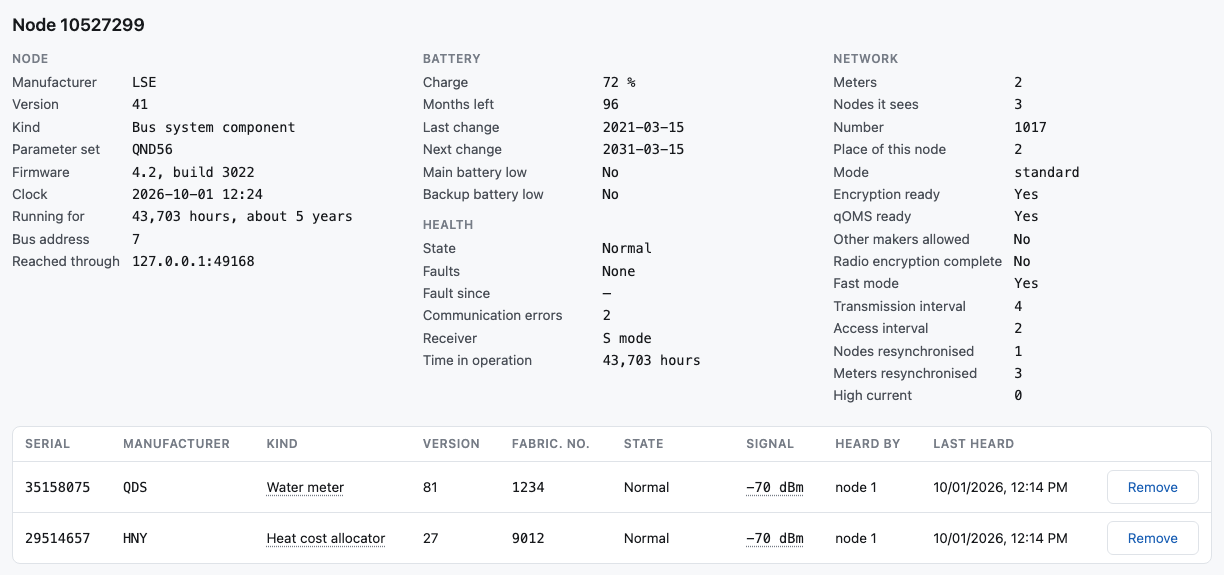
One row a meter. Serial is its serial number and Manufacturer the three letters of its maker; on the case the two are written together, such as QDS35158075. Kind says what it measures, in words, such as Water meter or Heat cost allocator; move the pointer over it to see its number. Version is which generation it is. Fabric. No. is the fabrication number, where the node holds one.
The next four columns are what the node keeps about the meter, and they come with every read:
- State is Normal, or what is wrong: a communication error, low power, an error at the meter, a last message that was bad. It is red when something is wrong. Being removed and added by hand are said here too.
- Signal is how well the node heard the meter the last time, in dBm. A number nearer to zero is better: -70 dBm is better than -90 dBm. Move the pointer over it to see the average of each of the last twelve months.
- Heard by is which node of the network heard it, and through which repeater if one carried it.
- Last heard is when, in your own time. never means the node has no time for that meter: it has not heard it since it started. The cell is empty where the node gives a time that cannot be true.
Above the table, what the node says of itself is in four parts, a name and a value on each row. A value the node has not given yet is a dash.
- Node: its manufacturer, version and kind, its parameter set (the name of its configuration in the Qundis tools, such as QND56), its firmware, what its clock says, how long it has been running, its address on the wired bus, and through which converter it was reached. A clock the node marks as not valid is red.
- Battery: how much charge is left, in percent, how many months it has left, when the battery was last changed and when the next change is due, and whether the main or the backup battery is low. A node with a flat battery stops, and its meters go quiet with it.
- Health: its state, its faults and since when, how many communication errors it counted, what its receiver listens for (S mode or C mode), and how long it has been in operation by its own count. Anything wrong is red.
- Network: see below.
Where the preset lists the meters expected on that node, a line appears above the table with two things: meters that were expected and are not on the node, and meters on the node that were not expected. That is usually why somebody opened this page.
"The node did not answer" is not "the node collects no meter". The page says which it is, and never one for the other.
A place on the node that does not answer is named, above the table, rather than left out. The bench asks each place three times before it gives up. A list with such a place may be missing a meter, so no plan is sent against it: read the node again.
Save the list, under the table, saves the list as a file: CSV for a spreadsheet, or PLT, the file the Qundis tools keep a building's device list in. Save one before a change: it is the record of what the node held, and the only backup this bench can give.
Compare with a file reads a CSV or PLT file back. It says which meters are on the node and not in the file, and lists the meters in the file and not on the node. Where the file gives a meter's whole address, as a PLT file does, Put it in the plan adds that one meter to the plan, as though it were typed. Nothing else in a file is ever sent. Both buttons wait until every place on the node has answered.
What else the node says
The network, the fourth part above the table: how many meters the node says it collects and how many other nodes it can see, the network's number, the place of this node in it (the number the other nodes use for it), the mode the network is in, what it is ready for (encryption, qOMS, meters of other makers, fast mode), two intervals, and how often the node has had to resynchronise its nodes or its meters since it started.
Other nodes of the network, under the table: every other node, as this node sees it. Its own place is not in the list.

- Place is the node's number in the network, and Node its serial.
- Battery and State are what this node knows of that node's battery and health.
- Direct says whether this node hears it directly, with no other node in between.
- Last heard is when this node last heard it.
- Signal is how well it is heard now, At installation how well it was heard when it was installed, then the Average and the Noise. Move the pointer over Signal to see the average of each of the last twelve months. A signal much lower than at installation is worth a look.
- Links lost are the places that node heard directly when it started and does not hear now.
- Resyncs is how often it had to resynchronise, this month and last month.
- Meters is how many meters that node collects.
Read the last messages, under the table, asks the node what each meter last sent, and adds a column to the meter table:

Last message is what the meter said: its newest values, or encrypted where the meter sends in secret, or not recognised. After this read, Signal, Heard by and Last heard show this newer answer.
It takes about twice as long as reading the node, so it is not done at every read. A node older than firmware 3.0, build 3022, cannot answer it, and the button says so.
Read the change history, beside it, reads the changes the node holds: every change it sent through its network, and what each other node answered. It shows changes made by any tool, the Qundis tools included.

- Made is when the change was made, in your own time.
- Change is what it was: Add or Remove and the meter, or Another change for a change this bench does not make itself.
- State says whether the change is ready, whether it was answered, and whether it was sent to every node.
- Sends left is how many more times the node will send it.
- Answers is what each node of the network said, by place: confirmed, no answer, refused or error. A change is complete when every node has confirmed it.
It asks the node thirty-two questions, one for each entry of its table, so it takes a minute or two behind a SIM. It changes nothing on the node.
Everything on this page about battery, health, the other nodes, the meters' state and the change history comes from the Qundis app's own code, and was added before it could be checked on a real node. Where a value looks wrong, compare it with the Q App and say so.
Adding and removing
Remove is on a meter's row. Add a meter is under the table, on the right of the row of buttons.
Neither sends anything. They put a line in a plan, and the plan is shown whole before it goes:

The plan stays at the bottom of the window, however long the list is. A meter whose removal is in the plan is struck through on its own row, and its button becomes Keep, which takes the removal out of the plan again.
Take a line out with Take it out of the plan, or empty the whole plan. It is lost if you close the page, and nothing has been promised to anybody.
Adding a meter asks for more than its serial number. A node keeps a meter under its whole address, so the window asks for the manufacturer's three letters, the version and the kind as well — the kind is chosen from a list, by its name. They are on the meter's label, and a meter added with the wrong ones is a different meter that will never answer.
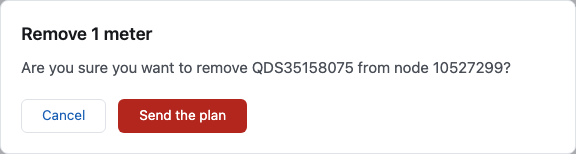
Press Send the plan when it reads the way you mean it. A removal is asked about by name first, because it cannot be undone from here.
The network login
A node wants the building's network login even to show its list. If the preset keeps the login, the node is read at once. If it does not, the bench asks for it when you press Read the node:
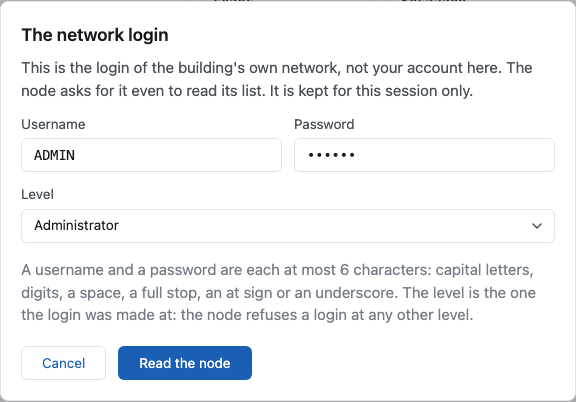
This is the building's login, not yours. It is what a technician types into the Q app, and it belongs to whoever manages the building. The bench uses it until you close the session, for reading and for sending the plan, and keeps it nowhere.
A username and a password are each at most six characters, and each character is a capital letter, a digit, a space, a full stop, an at sign or an underscore. Anything else is refused here rather than at the node.
Choose the level the login was made at. The node refuses the right username and password at any other level.
A login the node refuses is not sent again. A node that is sent a wrong login a few times can lock itself, and nothing on this page could undo that. So after a refusal, check the username, the password and the level before you try again. If the node refuses even a plain reading, it may have locked itself: wait, or restart the node, and then read it again.
Ask an administrator to put the login on the preset if you use one building often.
Asked for, and confirmed

A change is asked for when the node has taken it, and confirmed when the bench has read the node again and seen it.
The two are not the same, and the difference can be an hour. A change travels through the building's own radio network, and the node's list does not show it until it has arrived. While a change is still asked for, the page reads the node again by itself, every two minutes unless the installation says otherwise, and the line above the table says so. Press Read the node again to read it now.
You do not have to wait. The change is in the journal either way, and the next person to read that node closes the line, from any session.
The journal

Every change this bench has sent: when, who asked for it, on which node, what it was, and what the node answered. An administrator sees everybody's; you see your own.
Nobody can delete a row, and that is the point: this page changes buildings, and the journal is the only account of who changed one.
Presets
An administrator keeps them, and everybody sees all of them.

Add a preset or Change opens one window. It asks for
- the building's name, which is what the Node tab offers;
- the converter's address and port;
- the nodes, one a line: the serial number, a space, then the name to call
it, such as
10527299 stairwell A; - the network login, kept here or asked for every time.
A kept login is never shown again, to anybody, including the administrator who typed it. Changing a preset shows two empty fields: leave them empty and the login it holds stays as it is; type a new pair, with its level, to replace it; choose Ask for it every time to take it away.
A kept login the node refused says so in the list: kept here, refused by the node. The bench does not send it again, for anybody, until an administrator types a new one. Until then, whoever reads that building is asked for the login.
One converter, one preset. A second preset for the same address is refused — a building's nodes belong on one row.
The meters expected on each node are written in the same window, one line a
node: the node's serial, then its meters, such as
10527299 QDS35158075 HNY29514657. They change nothing the bench does: they are
what the comparison above the table is made against.